
Wedding QR codes: photo uploads, RSVPs and gift funds that work on the day
Make wedding QR codes for RSVPs, a shared photo album and a gift fund: one dynamic code or a guest page, what to print, sign sizes and a test checklist.
Key takeaways
- One dynamic code that you repoint over time beats three printed codes: RSVP before the wedding, the photo album on the day, thank-you notes after.
- A guest page with buttons (RSVP, map, gift fund, photos) lets one code carry several links, which a plain QR code cannot do.
- Google Photos shared albums let anyone with the link view and add photos, so treat that link like a key and switch collaboration off when the day is over.
- Print the code at least 2 cm wide, dark on light, with a clear margin, and write what it opens beside it.
- Test every printed code with an iPhone and an Android phone on mobile data, not just on the venue Wi-Fi.
Weddings are made for QR codes. Guests carry phones, the details change right up to the day, and nobody wants to type a long album link with cake in one hand. Done well, a single printed code handles the RSVP months ahead, the photo uploads on the night and the thank-you message afterwards. This guide shows how to plan that, what to print, how big, and how to test it so it works when your guests reach for it.
What can a wedding QR code do?
A QR code holds a piece of text. Phone cameras read it and, when the text is a web address, offer to open it. The ZXing barcode project, whose formats phones still follow, lists the kinds of content a code can carry: web addresses, email and text message drafts, phone numbers, contact cards, map locations, Wi-Fi details and calendar events. For a wedding, a web address is the one you want almost every time, because it can lead to a page that does many things.
| Use | Where to print it | What it opens |
|---|---|---|
| RSVP | Invitation, save-the-date | An RSVP form (for example a Google Form) |
| Wedding details | Invitation, website card | A guest page: date, venue map, dress code, schedule |
| Gift fund | Invitation insert, guest page | The fund or registry page you set up |
| Photo uploads | Table cards, bar sign, welcome sign | A shared photo album that guests can add to |
| Venue Wi-Fi | Welcome sign | A static Wi-Fi code (see our Wi-Fi QR code generator) |
| Thank you | Printed thank-you card | A message or the finished album |
Should you use one QR code or several?
One, if you can. Every extra code on a sign is a chance for a guest to scan the wrong one, and every code on an invitation is a decision you cannot change after printing. The trick is to use a dynamic code: the code holds a short link, and you change where the short link leads whenever you like. Our guide to static vs dynamic QR codes explains the difference in detail.
A plain QR code can only hold one destination, so a code cannot open the RSVP form and the album at the same time. You have two good ways around that:
- Repoint the code over time. Months before the wedding it opens the RSVP form. A week before, it opens the day’s schedule. On the day, it opens the photo album. Afterwards, a thank-you page.
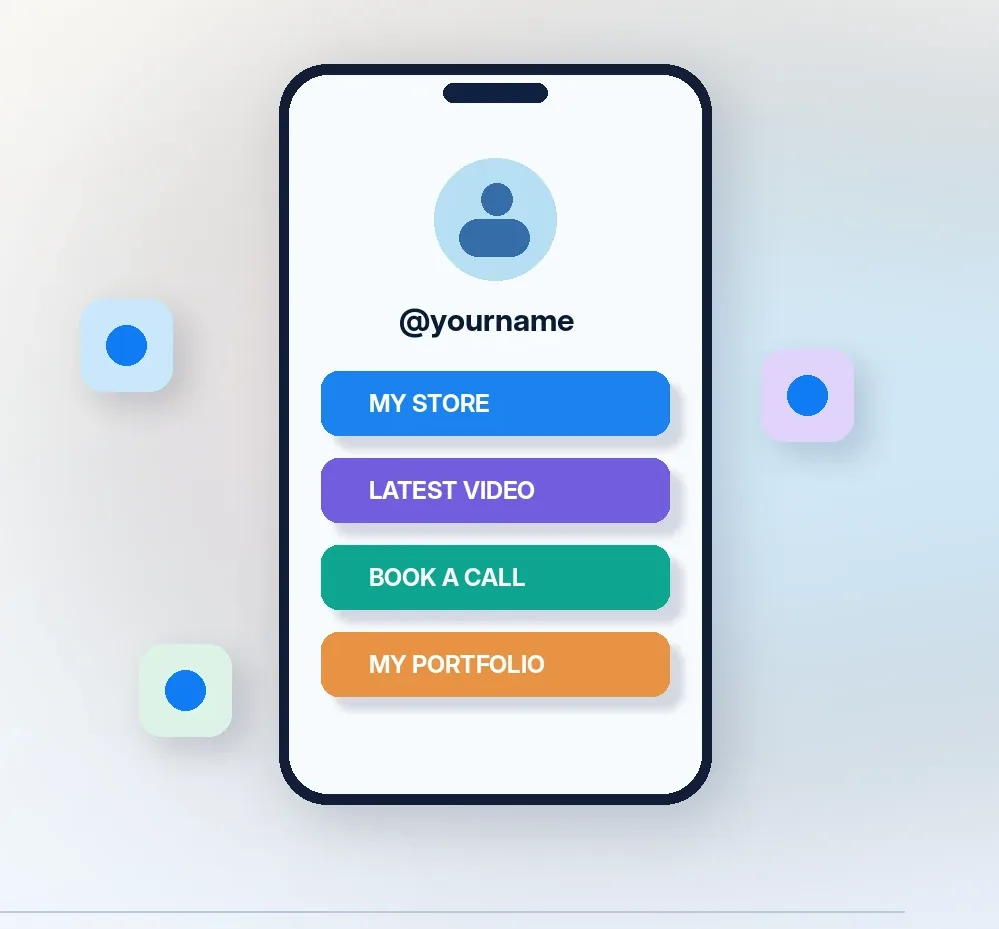
- Point the code at a guest page. A small page with buttons, one per link: RSVP, map, gift fund, photos. Guests scan once and pick. You can add or remove buttons later without touching the printed code.
You can combine both: a guest page that changes as the date gets closer.
How do you build a wedding guest page?
A link-in-bio page works well as a wedding guest page because it is made for phones and holds a stack of buttons. BN Shortener’s bio pages live at an address like b1.lc/@annaandsam and offer blocks that fit a wedding:
- Link buttons for the RSVP form, gift fund and photo album.
- Countdown to the ceremony, with your own text once it has started.
- Google Map with the venue address.
- Image grid for engagement photos, and a text block for the schedule and dress code.
- Contact form, so guests can send a question that reaches your email.
Blocks can also be shown or hidden by days and hours, so the photo-upload button can appear on the morning of the wedding and the RSVP button can disappear after your reply deadline. The free plan includes one bio page, which is all a wedding needs.
How do you collect RSVPs with a QR code?
Any online form will do. With Google Forms, build the questions (names, attending or not, meal choice, dietary needs, a song request), then copy the responder link. Google’s help explains that you can copy it from Preview, from the Published menu or from Share, and tick “Shorten URL” for a shorter address. Our guide to making a QR code for a Google Form covers the steps and the settings that trip people up, such as forms that ask guests to sign in.
Put the deadline next to the code, not only inside the form: “Scan to RSVP by 1 June”. Guests decide whether to scan from what is printed beside the code.
How do guests share photos with a QR code?
The simplest route is a shared album that guests can add to. In Google Photos, you open the album, tap Share and create a link. Google’s help is direct about what that link does: “anyone with the link can view the photos and add to the album.” Put that link behind your dynamic code on table cards and near the bar.
Two cautions. First, the link is the key: anyone who gets it can see and add photos, so do not post it publicly. Second, Google’s page says direct sharing goes to people with a Google Account, and the link is the way to reach people without one; it does not spell out whether adding photos through the link needs a Google sign-in, so test the upload with a phone that is signed out of Google before the day. If uploading needs an account, say so on the card.
When the party is over, switch collaboration off in the album settings and repoint your code to the finished album or a thank-you page.
How do you add a gift fund?
Set up the fund or registry with the service you choose, copy the page address and add it as a button on your guest page. Keep the printed wording simple (“Gifts: scan for our fund”) and put the details on the page, where you can change them. Because the code is dynamic, a mistake in the fund address is a quick edit, not a reprint. Test the full flow on a phone, up to the payment screen, before the invitations go out.
What size should a wedding QR code be?
Nielsen Norman Group, the user-experience research firm, recommends aiming “for a minimum size of 2 cm x 2 cm (0.8 inches x 0.8 inches)” and making codes larger as the scanning distance grows. DENSO WAVE, which created the QR code, says a code needs “a four-module wide margin at all sides”, a quiet zone where nothing is printed.
| Item | Typical scanning distance | Suggested code width |
|---|---|---|
| Invitation or RSVP card | In the hand | 2 to 3 cm |
| Table card | Arm’s length | 3 to 4 cm |
| Welcome or bar sign | A step or two away | 8 cm or more |
| Large easel sign | Several steps away | Test at the real distance; bigger is safer |
The figures beyond 2 cm are starting points, not rules. Our QR code size for print guide explains how the amount of data and the distance change the size, and the QR code size calculator does the sums. A short link inside the code keeps the pattern simple, which lets it scan well at small sizes.
How should the code look on a wedding sign?
Dark code on a light background, as NN/g advises. Gold on cream or white on dark green can look lovely and scan badly, so test any color choice on several phones. A small logo or monogram in the center is fine if the code has enough error correction, but keep the quiet zone clear of borders, flowers and frames. Test any logo version on several phones before it goes to the printer.
Most important, write what the code does next to it. NN/g’s first guideline is to explain what a code does and where it leads, because people decide to scan from that context. Print the short web address under the code too, so guests can type it if their camera struggles.
What is the test checklist before printing?
Run through this list with the final proof, not an early draft:
- The code opens the right page today, on an iPhone and an Android phone.
- You tested on mobile data, not only on home or venue Wi-Fi.
- The RSVP form opens without asking guests to sign in, unless you want that.
- A signed-out phone can open the photo album and, if you allow it, add a photo.
- The text beside the code says what it opens and any deadline.
- The short web address is printed under the code.
- The code is at least 2 cm wide with a clear margin, and larger on signs.
- You scanned a printed proof at the real distance, in dim light similar to the venue.
- You know how to change the destination from your phone on the day.
Static or dynamic: which is right for each card?
Use a dynamic code for anything that might change: RSVP, guest page, photos. Use a static code for the venue Wi-Fi, where the phone needs the details before it is online. Dynamic codes also count scans, so you can see whether guests used the table cards. BN Shortener’s free plan includes 5 dynamic QR codes, enough for a wedding, and downloads in PNG, SVG and PDF for the printer. Read how to track QR code scans if you want to compare cards.
One fair question to ask any provider before printing: what happens if I stop paying? With BN Shortener, links and dynamic codes keep working when a paid plan ends; plan limits only restrict creating new ones.
Start free
Make your guest page and a dynamic code in a few minutes at b1.lc: the free plan includes one bio page and 5 dynamic QR codes, and you can change where the code leads at any time. For a quick static code, try the free QR code generator, and see our wedding QR code page for sign ideas.
Sources
- Share photos & videos (shared albums and links), Google Photos Help, undated. Checked 2026-10-24.
- Send your form to people (copy responder link, Shorten URL), Google Docs Editors Help, undated. Checked 2026-10-24.
- 13 QR-Code Usability Guidelines, Nielsen Norman Group, 2024-02-09. Checked 2026-10-24.
- Points for setting QR Code symbol size (module size and margin), DENSO WAVE (QRcode.com), undated. Checked 2026-10-24.
- Barcode Contents, ZXing project wiki (GitHub), undated. Checked 2026-10-24.