
Link Guardian: know when a destination breaks, and fail over
Printed QR codes and sent emails keep sending people to a page long after you stop looking at it. Link Guardian watches those destinations, tells you when one breaks, and can move visitors to a backup page until it is fixed.
Updated
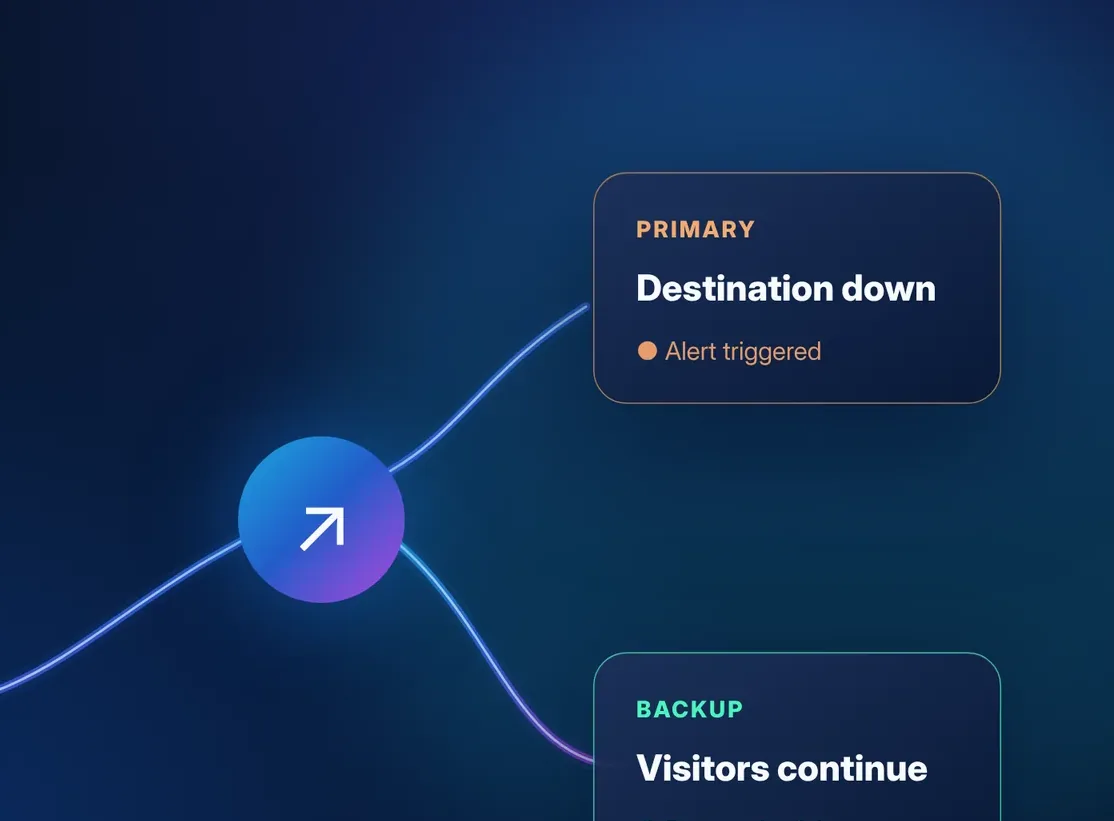
Re-checked after 3 minutes on a failure; an incident only after 2 failures in a row.
Visitors go to your backup URL without changing the link's real destination.
Email, Slack or Mattermost, and escalation contacts if nobody acknowledges in time.
One list of everything that needs attention: down, flagged, expiring, unmonitored, gone quiet.
What does Link Guardian check?
For each monitored link, Guardian requests the destination every 15 minutes. After a failure it checks again 3 minutes later, and it opens an incident only after 2 failed checks in a row, so a single hiccup does not wake anyone. The incident closes after 2 good checks. Each monitor shows its 24-hour uptime and has a Check now button.
Warnings are never treated as outages: a page that responds slowly (over 8 seconds) or blocks automated checks may still be fine for visitors.
| Result | Treated as |
|---|---|
| Healthy | OK |
| Responding slowly (over 8 seconds) | Warning |
| Blocks automated checks | Warning (may be fine for visitors) |
| Error response, timed out, connection failed | Failure |
| Domain does not resolve | Failure |
| SSL/TLS certificate problem | Failure |
| Redirect loop | Failure |
| Points to a non-public address | Failure |
How does failover work?
You set a backup URL per link: a status page, a cached copy, a sign-up form, a different store. It is threat-scanned when you save it and checked again right before it is used. Failover sends visitors to the backup without changing the link's real destination, and the switch is logged in the link history.
With auto-failover (opt-in), Guardian switches over by itself and switches back after 2 good checks. Without it, you fail over and restore by hand from the incident. Guardian never picks a backup URL on its own: without one you set, there is nothing to fail over to.
Who gets told, and how fast?
Each incident shows the traffic at risk (visits in the last 24 hours) and a severity based on it: high at 100 or more visits a day, medium at 10 or more, low below that. It moves through open, acknowledged, mitigated (failover on), recovered or false positive, with a timeline. Marking a false positive pauses alerts for 24 hours.
- Email to the owner, on by default, plus up to 10 extra addresses.
- Slack-compatible webhook for Slack or Mattermost; the same channel also hears when a link is blocked by the security scan.
- Escalation after 15 minutes, 30 minutes, 1, 2 or 4 hours (or never) to up to 10 escalation contacts, with "STILL DOWN, not acknowledged" and @channel on Slack.
- Webhooks: guardian.incident_opened, guardian.incident_escalated, guardian.incident_resolved and guardian.failover.
- A Send test alert button, and a sidebar badge with the number of links that are down.
What is Link Health?
Protect > Link Health collects every link that needs attention into one list, each with a button that goes straight to the fix. It covers your own links (not Trash or messaging links), shows a sidebar badge and a Dashboard card, and sends a weekly email with the critical items and warnings, which you can switch off.
Two more tools live on the same page. Traffic alerts warn you by email, on the Guardian alert channel or with the link.traffic_spike and link.traffic_drop webhooks when people's clicks on a link spike or drop over 6 hours, which catches a page that still answers but no longer works. And if a link is flagged or blocked by the security scan, you can send a review request from here; a person looks at it, and a flagged link gets a warning period before it is blocked.
| Issue | Severity | Shown when |
|---|---|---|
| Destination is down | Critical | A Guardian incident is open |
| Blocked by the security scan | Critical | Visitors see a warning page |
| Flagged by the security scan | Warning | Flagged, with the date it will be blocked unless fixed or reviewed |
| Launch Check: not ready | Warning | The latest check failed and is not signed off |
| Expires soon | Warning | Expires within 7 days |
| Expired recently | Info | Expired within the last 30 days |
| Busy link without monitoring | Info | 50+ people in 4 weeks and no Guardian monitor |
| Gone quiet | Info | 20+ clicks in the 3 weeks before, none in the last 7 days (fix from analytics) |
Which links should I monitor first?
Start with the links you cannot change once they are out: QR codes on packaging, signs and print, links in sent emails and SMS, and links in ads that keep spending while the page is down. Link Health's Busy link without monitoring suggestion points at the links with real traffic and no monitor, which is usually the right next step. The guide how to monitor a short link for downtime covers alert routing and backup pages in more detail.
Pair Guardian with Launch Check: Launch Check catches problems before you send, Guardian catches the ones that appear afterwards, when a site is redesigned, a certificate lapses or a page is quietly removed.
How to set it up
- Open Link Guardian
In the dashboard, go to Protect > Link Guardian, or start from Link Health's Monitor button on a busy link.
- Add the link and a backup
Choose the link to monitor and set a backup URL for it, such as a status page or an alternative landing page.
- Decide on auto-failover
Turn on auto-failover if visitors should move to the backup by themselves; leave it off to fail over by hand.
- Set up alerts
Add extra email addresses, a Slack or Mattermost webhook and an escalation time with escalation contacts. Use Send test alert to confirm.
- Check the list weekly
Use Protect > Link Health or its weekly email to clear expiring, flagged and unmonitored links.
Limits by plan
| Free | Pro | Business | Enterprise | |
|---|---|---|---|---|
| Monitored links | — | 25 | 250 | Unlimited |
| Check interval | — | Every 15 minutes | Every 15 minutes | Every 15 minutes |
| Extra alert emails | — | Up to 10 | Up to 10 | Up to 10 |
| Escalation contacts | — | Up to 10 | Up to 10 | Up to 10 |
Prices and every plan's limits are on the pricing page. Limits only restrict creating new items: what you already made keeps working.
Frequently asked questions
Still unsure? Ask us at sales@shortlen.com.
Which plan includes Link Guardian?
Pro monitors up to 25 links, Business 250 and Enterprise an unlimited number. Free has no monitored links (see pricing). Pro is $15 a month ($144 a year) and Business $49 a month ($468 a year); start free at b1.lc and upgrade any time from Plan & Billing.
How often is a destination checked?
Every 15 minutes. After a failure Guardian checks again 3 minutes later, and it opens an incident after 2 failed checks in a row. It closes the incident after 2 good checks.
Does failover change my link?
No. Failover sends visitors to the backup URL without changing the link's real destination, and it is logged in the link's history. Restoring sends visitors back to the destination.
Will Guardian choose a backup page for me?
No. It only fails over to a backup URL you set, and that URL is threat-scanned and checked right before it is used.
Can alerts go to Slack?
Yes. Add a Slack-compatible webhook (Slack or Mattermost). If nobody acknowledges an incident by the escalation time, the alert repeats as "STILL DOWN, not acknowledged" with @channel.
What if a site blocks automated checks?
Guardian reports a warning, "Blocks automated checks (may be fine for visitors)", not an outage. Warnings never open incidents.
What is the difference between Link Guardian and Launch Check?
Launch Check runs 13 checks before you send a link. Link Guardian keeps watching the destination afterwards, every 15 minutes, and handles incidents and failover.
Works well with
Guides
Try link Guardian today
The Free plan includes a custom domain, 5 dynamic QR codes, a bio page and click analytics. No credit card.