
How to make a QR code for a Google Form (and track scans against responses)
Get your Google Form's responder link, avoid the sign-in trap, turn it into a QR code, and compare scans with responses per placement using a pre-filled answer.
Key takeaways
- Copy the responder link only after the form is published; Google says an unpublished form cannot be opened by people with the link.
- Turning on Limit to 1 response makes people sign in to a Google Account, which loses many phone users; leave it off for public QR codes unless you need it.
- A dynamic code lets you swap in next term's form or a 'closed' page without reprinting, and counts every scan.
- Response rate is responses divided by scans; a low rate usually means the form is too long or awkward on a phone.
- A pre-filled link per placement records where each response came from inside the responses themselves.
A QR code is the quickest way to get a Google Form in front of people at an event, in a classroom, on a poster or at a till. The setup takes five minutes, but two details decide whether it works: whether the form makes people sign in, and whether you can tell how many people scanned versus how many answered. This guide covers both.
How do you get the link to a Google Form?
Google’s help page “Publish and share your form with responders” gives the route:
- Finish the form and publish it. Google states that if the form is unpublished, people with the link cannot access it.
- Click Published, then Copy responder link. You can also copy it from Preview or Share at the top right.
- For a shorter link, tick the box next to Shorten URL and copy that version instead.
Make sure you copy the responder link, not the editing address from your browser bar. Open it in a private browser window, or on a phone signed out of Google, to see what a scanner will see.
Will people have to sign in?
This is the most common reason a form QR code underperforms. Google’s help notes that if you turn on Limit to 1 response, users must sign in to their Google Account to access and fill out the form. Before publishing, owners can also restrict access to a domain, a trusted audience or a group of users.
For a code on a public poster, people scan on their phone, see a sign-in screen and many give up. So:
- Leave Limit to 1 response off unless duplicates would really hurt you.
- Under General access, give access to anyone with a link.
- If you need to know who responded, add a name or email question rather than forcing sign-in. Google’s help notes that responders’ usernames are not recorded unless you turn on email collection in the Responses settings.
For internal forms (staff check-in, a school survey within one domain) restricting access is right; just tell people on the poster to sign in with their work or school account first.
Should you use Google’s link, Google’s short link, or your own?
| Option | Code complexity | Counts scans | Change the form later | Best for |
|---|---|---|---|---|
| Full responder link in a static code | Dense pattern, long address | No | No | Quick tests only |
| Google’s Shorten URL in a static code | Simple pattern | No | No | A one-off sign, used once |
| Dynamic QR code or short link pointing to the form | Simple pattern | Yes, per code | Yes | Anything printed, reused or measured |
A dynamic code holds a short address that forwards to the form. You can point the same printed code at next term’s form, or at a “registration has closed” page when you stop taking answers, without reprinting. Our guide to static vs dynamic QR codes explains the difference in full.
How do you make the QR code, step by step?
- Copy the responder link and test it signed out.
- Create the code. For a quick static code, paste the link into our free QR code generator. For a trackable one, create a dynamic URL QR code in BN Shortener with the form link as its destination, and name it after where it will appear.
- Add a call to action next to the code, with the time it takes: “Scan to sign up, 1 minute”. The Nielsen Norman Group advises giving people enough context to want to scan.
- Download the code: SVG or PDF for print, PNG for slides and screens.
- Size it for the room. At least 2 x 2 cm, and about 1 cm wider for every 10 cm of scanning distance; a slide scanned from the back of a classroom needs to be big. The QR code size guide has a chart.
- Test on two phones, signed out of Google, over mobile data.
How do you track scans against responses?
You need two numbers from two places.
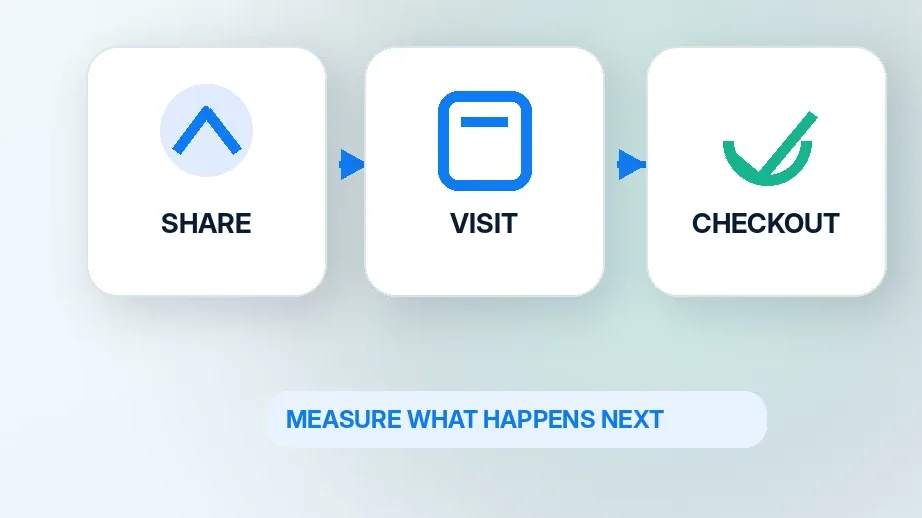
- Scans come from the dynamic code. BN Shortener’s scan analytics show total scans, unique visitors, mobile and desktop scans, and scans by date for each code. Google Forms cannot tell you this, because it only sees people who load the form, and it reports responses, not visits.
- Responses come from the form. Google’s help says to open the form and go to Responses: the Summary tab groups answers by question, Individual shows one submission at a time, Link to Sheets puts everything in a spreadsheet, and the More menu offers Download responses (.csv).
Divide responses by unique scans to get a response rate. A rate that is far below what you expect points to friction after the scan: a sign-in wall, a long form, or questions that are awkward to answer on a phone.
How do you see which placement each response came from?
Scans per code tell you which poster was scanned, but responses all arrive in one form. To connect the two, record the placement inside the response with a pre-filled link.
- Add a short-answer or dropdown question to the form: “Where did you see this form?”
- Open the form’s More menu and select Pre-fill form.
- Answer that question with the placement name, for example “library-poster”, and click Get link.
- Copy the link. Repeat for each placement.
- Make one dynamic code per placement, each pointing to its own pre-filled link.
The pre-filled answer is part of the link itself, which you can see if you paste it into our URL parser. Each response now carries its placement, and you can filter by it in Sheets. Keep the question at the end of the form so it does not distract people.
An illustrative month for a volunteer sign-up form:
| Placement | Code name | Unique scans (illustrative) | Responses | Response rate |
|---|---|---|---|---|
| Library poster | form-library | 120 | 54 | 45% |
| Cafe table cards | form-cafe | 80 | 18 | 23% |
| Newsletter slide at an event | form-event | 200 | 120 | 60% |
| Flyers in bags | form-flyer | 40 | 22 | 55% |
In this illustration the cafe cards get scanned but rarely completed; perhaps people scan while busy and forget. A shorter first page or a “save for later” message could help, or the cards could move elsewhere.
What should the code do after the form closes?
Printed codes outlive the forms behind them. A poster for a spring sign-up may still be on a noticeboard in June, and a static code will keep opening a form that no longer accepts responses. With a dynamic code you decide what happens:
- Point it at a “closed” page that says when the next round opens, or at a waiting-list form.
- Point it at next term’s form, so the same posters work again.
- Set an end date on the code itself. In BN Shortener a QR code can have an expiration date, after which scanners see a message that it has expired, or a maximum number of scans, which suits a limited number of places.
Example: check-in at an event
A small conference wants attendees to check in by scanning at the door, and wants to know how many people arrived at each entrance.
- The organizer creates a check-in form with name and ticket number, and a final question, “Entrance”.
- Two pre-filled links are made: one with “north”, one with “south”.
- Two dynamic codes,
checkin-northandcheckin-south, point at those links. - Each entrance gets a large sign with its code, sized for scanning from about 1 m.
- On the day, scans show arrivals by time at each door; responses in Sheets show who checked in and where.
- After the event, both codes are pointed at the feedback form, and the signs go into storage for next year.
How do you get more people to finish the form?
- Keep it short. Ask only what you will use. Put the essential questions first.
- Say how long it takes on the poster and at the top of the form.
- Design for phones: short answers, multiple choice where possible, few long text boxes.
- Avoid forced sign-in for public audiences.
- Show a deadline if there is one, and switch the code to a closing page when it passes.
Google Form QR code checklist
- The form is published and the responder link opens signed out.
- Limit to 1 response is off for public codes, or the sign-in requirement is stated on the poster.
- The code points to a dynamic short link, not the raw form address.
- One code per placement, each with its own pre-filled source answer.
- A call to action and the time it takes, next to the code.
- Scans and responses compared each week.
- A plan for the code after the form closes.
For more on reading the scan side, see how to track QR code scans.
Start free
You can put your next form behind a trackable, editable code in a few minutes. BN Shortener’s free plan includes 5 dynamic QR codes and 100 new links a month; Pro adds 250 dynamic codes when you need more. Start free at b1.lc. See the QR code features for design and download options.
Sources
- Publish and share your form with responders, Google Docs Editors Help, undated. Checked 2026-10-23.
- Pre-fill form answers (Publish and share your form with responders), Google Docs Editors Help, undated. Checked 2026-10-23.
- View and manage form responses, Google Docs Editors Help, undated. Checked 2026-10-23.
- 13 QR-Code Usability Guidelines, Nielsen Norman Group, 2024-02-09. Checked 2026-10-23.