
Where to find UTM traffic in GA4 (and why some of it shows as not set)
Find your UTM-tagged visits in Google Analytics 4: the Traffic acquisition report, which dimension each tag fills, and the mistakes that cause (not set) rows.
Key takeaways
- Your UTM tags appear in Reports > Acquisition > Traffic acquisition as Session source, Session medium and Session campaign.
- utm_term and utm_content are not in the default table; add Session manual term or Session manual ad content as a secondary dimension or use an exploration.
- GA4 has three versions of each dimension: first user, session and event scope. Pick session scope to judge a campaign's visits.
- Values are case sensitive, so Facebook and facebook become two rows; a missing or unrecognised medium sends visits to (not set) or Unassigned.
- With Google Ads auto-tagging, the gclid wins over your UTM source and medium; your utm_term and utm_content still fill the manual dimensions.
You tagged every link with UTMs, the campaign went out, and now you want to know how it did. GA4 has the data, but not where most people look first, and a few small mistakes split or hide it. This guide shows exactly where each tag ends up, how to find one campaign in a minute, and how to fix the rows that read (not set).
Where does UTM data appear in GA4?
The main place is the Traffic acquisition report. Google’s help page for campaign URLs names it as the report for manually tagged traffic and lists Session source / medium, Session medium, Session source and Session campaign as the dimensions to view there.
Find your campaign in five steps:
- Open Reports > Acquisition > Traffic acquisition.
- Set the date range to cover the whole campaign, plus a few days.
- Click the primary dimension drop-down above the table and choose Session campaign.
- Type your campaign name, for example
spring_sale, in the search box above the table. - Click the + next to the primary dimension and add Session source / medium as a secondary dimension to see which channels the campaign’s visits came from.
If the campaign does not appear, check the date range, then check for capital letters: GA4 treats Spring_Sale and spring_sale as different campaigns.
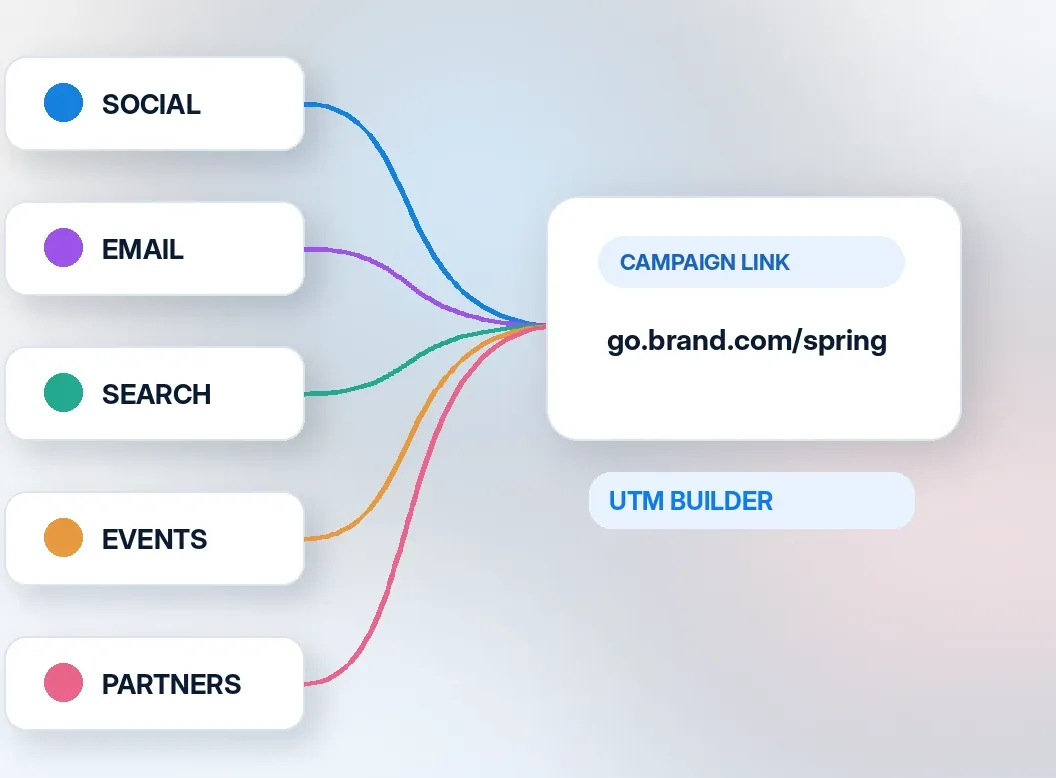
Which GA4 dimension does each UTM tag fill?
Every UTM parameter feeds a family of dimensions. Google’s page on traffic-source dimensions maps them like this:
| URL parameter | Session dimension (use this for campaign reports) | Other dimensions it fills |
|---|---|---|
utm_source | Session source, Session manual source | Manual source, First user manual source |
utm_medium | Session medium, Session manual medium | Manual medium, First user manual medium |
utm_campaign | Session campaign, Session manual campaign name | Manual campaign name, First user manual campaign name |
utm_term | Session manual term | Manual term, First user manual term |
utm_content | Session manual ad content | Manual ad content, First user manual ad content |
utm_source_platform | Session manual source platform | Manual source platform, First user manual source platform |
utm_creative_format, utm_marketing_tactic | Not reported | Google says these are not currently reported in GA4 properties |
utm_id is accepted, and Google recommends setting it, but it is not the field you will usually browse in standard reports.
First user, session or event: which one?
GA4 keeps three versions of most traffic-source dimensions, and choosing the wrong one is the most common reason two people get different numbers for the same campaign:
- First user dimensions describe how a person first arrived. Use them to judge which campaigns bring new users.
- Session dimensions describe how each visit began. Google’s help page says each session is associated with only one campaign or traffic source. Use these to judge a campaign’s visits and engagement.
- Event-scoped dimensions (plain “Source”, “Medium”, “Manual term”) are used for attribution of key events. Google notes that tags arriving mid-session attach to the events they come with, not to the session.
For “how many visits did the spring email bring”, use the session dimensions.
How do I see utm_content and utm_term?
They are not in the default Traffic acquisition table, which is why many people think they were lost. Two ways to see them:
- Secondary dimension. In Traffic acquisition, keep Session campaign as the primary dimension and add Session manual ad content (for
utm_content) or Session manual term (forutm_term) as the secondary. - Exploration. Go to Explore > Free form, import Session campaign, Session manual ad content and Session source / medium as dimensions, and Sessions and Key events as metrics. Put campaign and ad content in rows. This is the best view for comparing two buttons or two placements in the same email.
Which medium values put traffic in the right channel?
GA4’s default channel group sorts sessions into channels using the source and medium. If your medium matches no rule, the session lands in Unassigned. These are the rules from Google’s default channel group page for the channels you are most likely to tag by hand:
| Channel | Rule (abridged from Google’s definitions) | Safe value to use |
|---|---|---|
| Source or medium is email, e-mail, e_mail or e mail | utm_medium=email | |
| SMS | Source or medium exactly matches sms | utm_medium=sms |
| Organic Social | Source is a known social site, or medium is social, social-network, social-media, sm, social network or social media | utm_medium=social |
| Paid Social | Source is a known social site and medium matches cp, ppc, retargeting or starts with paid | utm_medium=paid_social or cpc |
| Display | Medium is display, banner, expandable, interstitial or cpm | utm_medium=display |
| Affiliates | Medium is affiliate | utm_medium=affiliate |
| Referral | Medium is referral, app or link | utm_medium=referral |
Note what is missing: there is no rule for newsletter, qr or print. Sessions with those mediums are counted, but they end up in Unassigned. That is fine if you report by campaign; if you report by channel, either use a medium from the table or build a custom channel group.
Why do some rows show (not set) or Unassigned?
Google’s help page on (not set) gives the main causes, and most come from tagging:
- A missing parameter. “Missing UTM parameters will result in (not set) values being present in reporting.” A link with a source but no campaign shows (not set) in the campaign column.
- Incomplete or incorrect parameters, such as a typo in the key (
utm_campain) or an encoded?that breaks the query string. - No session_start information. Google notes that Session source / medium reports (not set) when the automatically collected event is missing, and that such traffic is shown as Unassigned in the default channel group.
- A medium that matches no channel rule, as in the table above, gives Unassigned rather than (not set).
What are the most common UTM mistakes in GA4?
- Mixed capitals. Google’s page is explicit: “Parameter values are case sensitive”, and Meta and meta become two values. Use lowercase everywhere; our UTM naming conventions guide has a ready scheme.
- Tagging internal links. A UTM on a link from your own homepage to your own pricing page rewrites the event-scoped source for what follows and confuses attribution. Keep UTMs for links that live outside your site.
- Mixing UTMs and auto-tagging on Google Ads. Google says that when manual and auto-tagging are used together, GA4 uses the auto-tagged values for source and medium. Your
utm_termandutm_contentstill fill the manual dimensions. - Redirects that drop the query string. If a redirect between the click and the landing page strips
?utm_..., GA4 never sees the tags. Test the full path once before launch. - Looking in the wrong dimension. UTM values are left out of “Landing page + query string” and “Page path + query string”; Google says they appear in Page location instead.
- Expecting creative format and tactic.
utm_creative_formatandutm_marketing_tacticare not currently reported in GA4.
How do short links fit in?
A short link does not change how GA4 reads UTMs; it only carries the tagged URL. Build the destination with tags first, then shorten it. The short link redirects to the full tagged URL and GA4 reads the tags on the landing page.
Two extras help when the link is a BN Shortener link (the service behind Shortlen, at b1.lc):
- Tags added to the short link can reach the site. With Visitor’s link parameters set to “Pass them on”, tags someone adds to the short link, such as
utm_source=chatgpt.com, are passed to the destination. If the destination already has the same tag, the destination’s value wins. - Naming rules catch mistakes before launch. In the dashboard UTM builder you can set allowed values and preferred spellings (
fb=facebook) with lowercase on by default. Launch Check then warns about a link taggedutm_source=fband shows the right value.
The short link’s own analytics break clicks down by any UTM tags added to the short link itself (for example b1.lc/AbC9?utm_source=chatgpt.com), counting people rather than bots; for tags on the destination, compare links or campaigns side by side. That gives you a second view to compare with GA4.
Checklist before you report a campaign
- Every outside link has
utm_source,utm_mediumandutm_campaign, all lowercase. - Mediums match a GA4 channel rule, or you report by campaign instead of channel.
- No UTMs on links inside your own site.
- You clicked one live link and saw the tags in the landing page’s address bar.
- In Traffic acquisition, Session campaign shows the campaign with no stray spellings.
- utm_content variants appear under Session manual ad content.
- You compared GA4 sessions with people counted on the short links; see why short link clicks run high.
To tag one link, use the free UTM builder. To tag a whole campaign at once, the bulk UTM builder tags up to 500 links and downloads them as a CSV. For the tagging side in depth, read how to tag links with UTM parameters, and for AI assistant traffic, how to track traffic from ChatGPT.
Start tracking campaigns
Clean tags are the cheapest analytics fix there is. When you want short links that carry them, warn about bad spellings and count people, start free at b1.lc. Click analytics come with every plan, and the UTM campaigns feature page shows what the builder, naming rules and campaigns include on each one.
Sources
- [GA4] URL builders: Collect campaign data with custom URLs, Google Analytics Help, undated. Checked 2026-10-23.
- [GA4] Traffic-source dimensions, manual tagging, and auto-tagging, Google Analytics Help, undated. Checked 2026-10-23.
- [GA4] Scopes of traffic-source dimensions, Google Analytics Help, undated. Checked 2026-10-23.
- [GA4] Default channel group, Google Analytics Help, undated. Checked 2026-10-23.
- [GA4] What the value (not set) means in your reports, Google Analytics Help, undated. Checked 2026-10-23.