
QR codes for events: RSVP, Eventbrite, check-in and feedback with one code
Plan event QR codes that change with each stage: RSVP, an Eventbrite page, check-in, agenda and feedback. Plus sponsor and calendar codes and a print checklist.
Key takeaways
- A dynamic QR code holds a short link, so the same printed code can send people to registration, then the agenda, then the feedback form.
- Plan the stages before you print: list what each code should do before, during and after the event, and who switches it.
- Give every sponsor, booth and poster its own code, with UTM tags on the destination, so scans per placement are clear.
- Calendar codes carry an iCalendar VEVENT; phone support varies, so test on iPhone and Android and offer a link as well.
- Label every code with what it does, print a short URL beside it, and test it in the real venue light and distance.
Events print more QR codes than almost anything else: posters, badges, programmes, table cards, sponsor stands, slides. Most of them are made at the last minute, point to one page, and are useless a day later. With a little planning, one set of codes can serve the whole life of the event, and tell you which placements people actually used.
Why use a dynamic QR code for an event?
A static QR code has its destination built in. A dynamic code holds a short link, and the link decides where people go, so you can change the destination at any time and every scan is counted. For events that matters, because what people need changes every few weeks:
| Stage | What people need | Where the code points |
|---|---|---|
| Weeks before | Details and a way to sign up | Registration page |
| Days before | Practical information | Venue, travel, schedule and an add-to-calendar option |
| On the day | Getting in and finding their way | Check-in instructions, agenda, room map, Wi-Fi |
| During sessions | Taking part | Live polls, Q&A, slides |
| After | Giving feedback and catching up | Feedback form, recordings, next event |
One printed code on the poster, the programme and the lanyard can do all of this. For every link a conference uses, see event and conference links. You change the destination at each stage; nothing is reprinted.
How do I set up one code for every stage?
- Write the stage plan before you design anything: dates, the destination for each stage, and who switches it. Put the switch times in a shared calendar.
- Create one dynamic QR code per purpose, not per stage. A typical event needs a main event code, a Wi-Fi code, a code per sponsor, and perhaps one per session room.
- Point the main code at the registration page and add UTM tags (
utm_source=poster,utm_medium=qr,utm_campaign=summit26) so your web analytics can tell print from other channels. The free UTM builder makes the tagged URL. - Label each code with what it does now and later. “Scan for the agenda” works on the day; “Scan for event info” works at every stage.
- Switch the destination at each stage. In BN Shortener (the service behind Shortlen, at b1.lc), you edit the destination of a dynamic code at any time, and the change applies to the next scan. If you print a short link’s QR code instead, every change is kept in the link history and can be rolled back if someone switches too early.
- After the event, point it somewhere lasting: recordings, a thank-you page, or next year’s registration. Do not let it expire.
If you want a switch to happen at an exact time without anyone at a keyboard, use a short link with a schedule instead: set the start and end in your time zone and a fallback URL for before and after. Then use that link’s own QR code in print.
What QR codes does an event need?
| Code | Type | Why |
|---|---|---|
| Main event code | Dynamic URL code | Registration, then agenda, then feedback |
| Venue Wi-Fi | Static Wi-Fi code | Guests join without typing a password; see the Wi-Fi QR code generator |
| Speaker contact cards | Static vCard code | Attendees save speaker details in one scan; see the vCard QR code generator |
| Sponsor and booth codes | Dynamic URL code per sponsor | Each sponsor’s scans counted separately |
| Session codes | Dynamic URL code per room | Slides, polls or Q&A for the session in that room |
| Save the date | Static Event (calendar) code, or a dynamic URL code to an event page with add-to-calendar buttons | Adds the event to a phone calendar |
| Feedback | Feedback QR code | A rating page in English or Arabic, with your review links shown to everyone; each answer emailed to you |
For the codes themselves, the free QR code generator covers links, Wi-Fi, contacts and more; a location QR code opens the venue on a map. For scan counts and changeable destinations you need dynamic codes; see static vs dynamic QR codes.
How do I make a QR code for RSVP?
An RSVP code is a code that opens a reply form. Build it in this order so the printed code never has to change:
- Make the form. Google Forms, Microsoft Forms or your event platform all work. Ask only what you need: name, attending yes or no, number of guests, dietary needs, and the reply-by date in the description. Our guides to shortening Google Forms and Microsoft Forms links show how to share a form with a short, trackable link.
- Put the form link behind a short link, such as
go.yourbrand.com/rsvp, so you can swap the form later. - Make a dynamic QR code of the short link and print it on the invitation with one line of text: “Scan to RSVP by 15 May”.
- Test it on a phone that is not signed in to your Google or Microsoft account, which is what most guests will see.
- After the deadline, point the same code to the event details, the venue map or a thank-you page.
Weddings are the most common case; the wedding QR code guide covers RSVP, photos and gifts with one code, and you can make the code itself with the wedding QR code generator.
How do I make a QR code for an Eventbrite event?
If you sell tickets on Eventbrite, there are two kinds of code:
- Attendee ticket codes are issued by Eventbrite per order and scanned at the door. Leave those to Eventbrite.
- Codes for your event page go on posters, flyers and slides. Eventbrite’s help centre says that some of the promotional images it creates for sharing “will include a QR code that attendees can scan to visit your event”, and that “these promotional images are auto-generated and can’t be customized” (Eventbrite Help Center).
For a code in your own design, with scans counted per placement:
- Publish the event first, then copy the event page link.
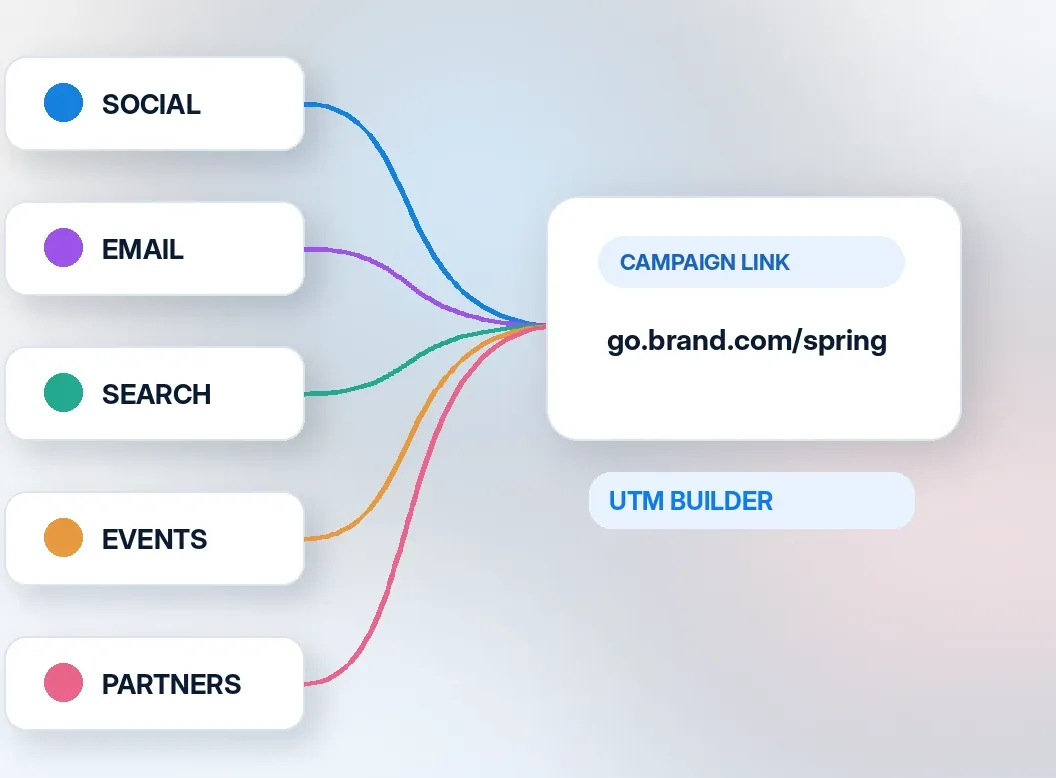
- Create one short link per placement (poster, flyer, partner newsletter) pointing at the event link, with UTM tags so your analytics can tell them apart.
- Make a dynamic QR code for each short link and add a call to action such as “Scan for tickets”.
- After the event, point the codes to the recordings, photos or next year’s event, so old posters still help.
Should I use a QR code for check-in?
Be clear about the two kinds of code at an event:
- Personal ticket codes identify one attendee. They come from your ticketing or registration platform, which checks them at the door. A shared QR code cannot do this.
- Public information codes help everyone: where to check in, which entrance, what to bring. That is the job for a dynamic code on signage near the entrance.
How do I track sponsor and booth codes?
Sponsors want to know what their stand produced. Give each one its own code and you can show them:
- One code per sponsor, each with its own UTM tags (
utm_content=sponsor-acme) on the destination. - Group them: put the sponsors’ short links in a campaign (Pro and higher), or the QR codes in one QR folder, so totals add up in one place.
- Count scans per code: total scans, unique visitors, devices and time of day, counting people rather than bots. See how to track QR code scans.
- Share the numbers. For a sponsor’s short link, BN can turn on a public stats page, a private address showing totals, a daily chart, top countries and devices, with no personal data and no sign-in for the viewer. You can switch it off or change its address at any time.
How do add-to-calendar QR codes work?
A calendar code carries the event itself: title, start, end, location and description. If you’d rather not write it by hand, the free add-to-calendar link generator makes the Google Calendar and Outlook links, an .ics file and a QR code from one form. The format underneath is iCalendar (RFC 5545), where an event is a VEVENT component. A minimal one looks like this:
BEGIN:VEVENT
UID:summit26@yourbrand.com
DTSTAMP:20261023T090000Z
DTSTART:20261112T130000Z
DTEND:20261112T170000Z
SUMMARY:Customer Summit 2026
LOCATION:Hall B, 10 Main St
END:VEVENT
Two practical cautions:
- Phone support varies. How a scanned calendar code is handled depends on the phone and the camera or scanner app. Test on an iPhone and an Android phone before printing.
- Calendar apps differ. Google’s help page, for example, describes importing iCalendar files into Google Calendar “on a computer”. So also give people a link: an event page with add-to-calendar buttons works everywhere.
In BN Shortener, the Event (calendar) QR type has title, start, end, location and description fields. For save-the-date, make the Event code static (it carries the calendar event itself), or point a dynamic URL code at an event page with add-to-calendar buttons.
What goes wrong with event QR codes?
The same few mistakes turn up at event after event:
- A code with no label. People will not scan a code when they cannot tell what it does. The Nielsen Norman Group notes that QR codes “have no information scent by themselves.”
- Codes on moving screens. A code on a slide that changes after ten seconds rarely gets scanned. NN/g suggests assuming people need at least 15 seconds; on rotating displays, show a short URL instead.
- A destination built for the office. A heavy page that loads fine on Wi-Fi can stall on a crowded hall’s mobile signal.
- Codes nobody switched. The poster still says “Register now” while the event is under way. Put the switch dates in the calendar with an owner.
- Expired codes on printed material. Programmes and badges travel home. A code that ends in an error after the event wastes every later scan; point it at recordings or next year’s event instead.
- One code for every sponsor. If all the stands share a code, nobody can tell which one worked.
How do I plan codes for a multi-day or recurring event?
For a conference that runs several days, keep the main code stable and change only what it opens: day one’s agenda in the morning, day two’s the next. If you run the same event every year, keep the codes too. Point last year’s code at this year’s registration as soon as it opens, and every programme someone kept becomes a reminder. The scan history shows how many people came back through old print.
Event QR code print checklist
The Nielsen Norman Group’s QR usability guidelines are a good base for events. Turned into a checklist:
- Every code has a label that says what scanning does, not a bare “Scan me”.
- A short URL is printed beside each code for people who cannot scan; a branded one such as
go.yourbrand.com/summitis easy to type. - Codes are at least 2 x 2 cm, with about 1 cm per 10 cm of scanning distance; see what size a QR code should be.
- Dark code on a light background, never inverted.
- Codes sit where people pause: queues, tables, badge backs, not moving screens.
- Every code was tested in the venue’s real light, at the real distance, on two phones.
- Destinations load fast on mobile data, not just on the office Wi-Fi.
- No printed code is set to expire; old ones point to a page about the next event.
- The stage switch dates are in a shared calendar with an owner.
Start free
You can start free at b1.lc: the Free plan includes 5 dynamic QR codes and click analytics, enough for a main event code and a few sponsors, and you can change their destinations as the event moves on. See QR codes for design options and file formats.
Sources
- 13 QR-Code Usability Guidelines, Nielsen Norman Group, 2024-02-09. Checked 2026-10-23.
- RFC 5545: Internet Calendaring and Scheduling Core Object Specification (iCalendar), IETF, 2009-09. Checked 2026-10-23.
- Import events to Google Calendar, Google Calendar Help, undated. Checked 2026-10-23.
- Share your event, Eventbrite Help Center, undated. Checked 2026-10-24.