
How to create a QR code in Canva, Chrome, Edge, Word, Google Docs or Adobe
Step-by-step QR codes in Canva, Chrome, Edge, Word, Google Docs and Adobe Express, from each vendor's help. Why they are static, and when to use a dynamic code.
Key takeaways
- Canva's own app is called Static QR codes: you add a URL and it places the code in your design.
- Chrome makes a code for the page you are on, from the menu on desktop or the Share sheet on Android and iPhone.
- Word for Windows makes a QR code with the DisplayBarcode field code, with switches for error correction, size and colour.
- Edge makes a code from the right-click menu or the address bar; Adobe Express makes static codes for free; Google Docs needs a code made elsewhere and inserted as an image.
- All of them encode the link directly, so a code cannot be edited after printing and nobody counts the scans.
- Put a short link you control into any of these tools, or use a dynamic QR code, when the code will be printed or needs measuring.
You probably already have a QR code maker: Canva, Google Chrome, Microsoft Edge, Microsoft Word and Adobe Express can all make one, and Google Docs can hold one. For a quick code on a slide or a one-off flyer, they are fine. This guide shows how each one works, using each vendor’s own help pages (opened on 23 and 24 October 2026), and where they all fall short.
How do I create a QR code in Canva?
Canva has its own app called Static QR codes, published by Canva. Its listing describes it in one line: “Add a URL and we’ll create a QR code for you to add to your design. People can scan the QR code to reach the URL.”
To use it:
- Open your design in the Canva editor.
- Find Static QR codes among Canva’s apps (its listing page has an Open app button) and open it in your design.
- Add the full URL, including
https://. - Add the code to your design and position it like any other element.
The name tells you its main limit: the code is static. Canva’s marketplace also lists third-party QR apps. One of them, QR Codes (& Links) from Bitly, is described on its Canva listing as a way to “create and add QR Codes & short links to your designs, then track their engagement”. Check each app’s permissions on its listing before you add it.
How do I create a QR code in Google Chrome?
Chrome makes a QR code for the page you are looking at. Google’s help page “Share tabs in Chrome” gives the steps per device:
| Device | Steps from Google’s help |
|---|---|
| Computer | Open the page, select More, then Cast, save, and share, then Create QR code. You can copy the QR link, download the code, or scan it with another device. |
| Android | Open the page, tap More next to the toolbar, tap Share…, select QR Code, then follow the on-screen steps to share or download it. |
| iPhone and iPad | Open the page, tap Share at the top, then Create a QR Code, then Share below the code. |
This is the fastest route when you just want someone in the room to open the page on their phone. Its limit: the code holds the address in the address bar, exactly as it is, including any long tracking parameters.
How do I create a QR code in Microsoft Edge?
Edge has a QR code generator built in. Microsoft’s Edge feature page gives two routes:
- Right-click anywhere on the page and choose Create QR code for this page, or select the QR code icon in the address bar.
- Scan the code with your phone, or download it as a PNG image to share or print.
Microsoft adds that “feature availability and functionality may vary by device type, market, and browser version”. Like Chrome, Edge encodes the address exactly as it appears in the address bar, so clean or shorten long links first.
How do I create a QR code in Microsoft Word?
Word for Windows makes QR codes with a field code called DisplayBarcode. Microsoft’s support page says it “is supported in Word for Windows (desktop)” and supports 10 barcode types, QR among them.
Steps, from Microsoft’s page:
- Click where you want the code.
- Press Ctrl + F9. Microsoft notes that “just typing curly brackets {} won’t work”.
- Inside the brackets, type the field, for example:
DisplayBarcode "https://yourbrand.com/menu" QR \q 3 - Right-click the field and select Toggle Field Codes to see the QR code.
Useful switches, as listed by Microsoft:
| Switch | What it does |
|---|---|
\q | QR error correction level, 0 to 3 |
\s | Scaling factor, 10 to 1000 percent |
\f and \b | Foreground and background colour, as RGB values |
\r | Rotation, 0 to 3 |
For a mail merge, Microsoft points to a related field, MergeBarcode. Microsoft also warns that “if the data doesn’t meet the requirements for the selected barcode type, the barcode may not render”.
How do I add a QR code in Google Docs?
Google Docs has no QR generator of its own. You make the code elsewhere and insert it as a picture:
- Make the code in any generator, for example our free QR code generator (no account), or Chrome’s Create QR code, and download the PNG.
- In your document, choose Insert > Image. Google’s help lists the sources: upload from computer, search the web, Drive, Photos, a URL or the camera.
- Resize it by dragging a corner, keep a white margin around it, and do not stretch it out of square.
Add-ons in the Google Workspace Marketplace can generate codes inside Docs; check what data an add-on asks for before installing it. A code inserted this way is still static.
How do I create a QR code in Adobe Express?
Adobe Express has a free QR code generator. Adobe’s page describes it: paste your URL, pick a style and colours, optionally add a logo in the centre, and download the code as PNG, JPEG or PDF. Adobe states that “Adobe Express generates static QR codes” and that “QR codes created with Adobe Express never expire”, which is true of static codes in general, as long as the page they point to stays up. Like the others, it cannot change the link after printing or count scans.
What can’t these built-in QR tools do?
All of them put the link itself into the pattern. That is what “static” means, and it has consequences:
| Canva Static QR codes | Chrome | Word DisplayBarcode | Dynamic QR code | |
|---|---|---|---|---|
| Change the link after printing | No | No | No | Yes |
| Count scans | No | No | No | Yes |
| Long links | Make a denser code | Make a denser code | Make a denser code | Always a short address |
| Vector file for print | Depends on your Canva export | Not stated by Google | Prints from the document | SVG, PDF, EPS in BN Shortener |
| Logo, colours, frames | Your Canva design around it | No | Colours only | Full design options |
| Where it runs | Canva | Chrome | Word for Windows desktop | Any browser |
The two that hurt most are the first two. If the page moves, the code breaks and the only fix is a reprint. And you will never know whether anyone scanned it. Our guide on static vs dynamic QR codes covers the difference in depth.
When should I use a dynamic QR code instead?
Use a dynamic code, or a short link you control, when any of these is true:
- The code goes on something printed in quantity: packaging, menus, posters, signs, business cards.
- The code will be around for more than a few weeks.
- The destination might change: a seasonal menu, a new price list, an updated PDF.
- You need to know how many people scanned, where and when.
- The link is long, with tracking tags that would make the code dense.
A static code from Canva, Chrome, Edge, Word or Adobe Express is fine for a slide in a meeting, a one-day event or a code on a screen.
Can I keep using Canva or Word and still get tracking?
Yes, with one trick: put a short link you control into the tool, not the final page address.
- Create a short link in BN Shortener (the service behind Shortlen, at b1.lc), such as
go.yourbrand.com/menu, pointing at your page. - Paste the short link into Canva’s Static QR codes app, Word’s DisplayBarcode field or any other generator.
- Print as usual.
The pattern now holds the short link, which never changes. When the menu moves, edit the short link’s destination and the printed code follows. Every scan is a click on the short link, counted with country, device and time, and BN Shortener counts people by default and keeps bots apart. As a bonus, a short link makes a simpler code with bigger modules, which scans more reliably at small sizes; see QR code size for print.
If you prefer to design the code itself, BN Shortener’s QR builder makes dynamic codes by default, with colours, logos, frames and eye styles, and exports SVG, PDF and EPS for print as well as PNG, JPEG and WEBP. Download the file and place it in your Canva or Word layout. The Free plan includes 5 dynamic QR codes. For a quick static code with no account, the free QR code generator also makes PNG and SVG files in your colours.
What mistakes should I avoid with built-in QR codes?
The tools are simple; the mistakes come from what goes into them.
- Encoding a messy URL. Chrome uses the address in the address bar, which often carries session IDs, click IDs (
fbclid,gclid) or long tracking tags. The longer the link, the denser the code. Clean it first with the free URL parser and link cleaner, or shorten it. - Encoding a link that will change. A link to “this month’s offer” or a file in a shared drive will move. Encode a short link you can re-point.
- Testing on the screen only. A code that scans from a monitor can fail on paper, especially small, glossy or coloured. Always scan the printed proof.
- Low contrast and inverted colours. Light codes on dark backgrounds and pale brand colours are frequent reasons a printed code fails.
- Cropping the margin. Every code needs a blank border. In Canva, keep other elements away from its edges.
- No call to action. A bare code does not tell people why they should scan; a short line such as “Scan for the menu” does.
Our QR code size for print guide covers margins and minimum sizes in detail.
Before you print: test the code
Whatever tool you use:
- Scan the printed proof, not the screen, with two different phones.
- Scan from the distance people will actually stand at.
- Check the page it opens loads fast on mobile data.
- Keep dark modules on a light background with a clear margin around the code.
- Add a line of text that says what the code does, such as “Scan for the menu”.
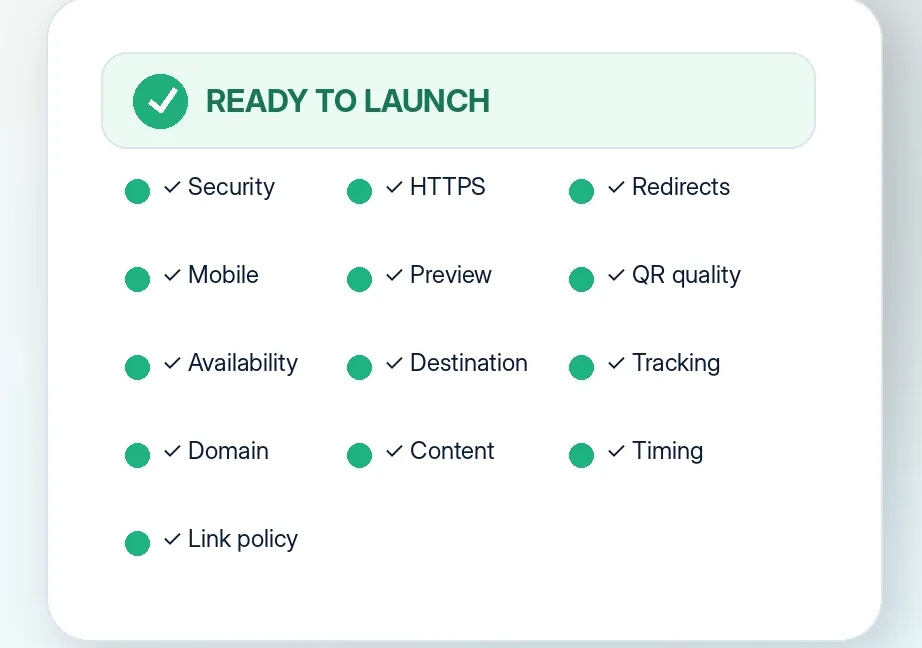
BN Shortener’s Launch Check includes a QR print quality check for every code that uses a link: it fails below 3:1 contrast, warns below 4.5:1, flags inverted colours and transparent backgrounds, and warns when a logo is too large for the error correction level. See the Launch Check feature page.
Start free
Canva, Chrome, Edge, Word, Google Docs and Adobe Express are good for quick, short-lived codes. For anything you will print, start free at b1.lc: the Free plan includes 5 dynamic QR codes, 100 new short links a month, one custom domain and scan analytics. Pro ($15 a month) raises that to 250 dynamic QR codes; see the pricing page and the QR codes feature page. Need dozens of codes for a print run? Create them from a CSV (up to 2,000 rows) and download them all as one ZIP.
Sources
- Static QR codes (Canva app listing), Canva, undated. Checked 2026-10-23.
- QR Codes (& Links) (Canva app listing), Canva, undated. Checked 2026-10-23.
- Share tabs in Chrome (computer, Android, iPhone and iPad), Google Chrome Help, undated. Checked 2026-10-23.
- Field codes: DisplayBarcode, Microsoft Support, undated. Checked 2026-10-23.
- QR Code Generator (Microsoft Edge features), Microsoft, undated. Checked 2026-10-24.
- Insert or delete images & videos (Google Docs), Google Docs Editors Help, undated. Checked 2026-10-24.
- Free QR code generator (Adobe Express), Adobe, undated. Checked 2026-10-24.