How to create a link for a file: PDF, photo or video, with the right permissions
Turn a PDF, photo or video into a shareable link with Google Drive, Dropbox, OneDrive or iCloud, set who can open it, and avoid the permission traps.
Key takeaways
- Every cloud drive has the same two choices: who can open the link, and whether they can only view or also edit.
- Restricted links fail for anyone you did not add, so test every link in a private window, signed out.
- Dropbox links open a preview page; Dropbox documents dl=1 to force a download and raw=1 to show the file directly.
- Moving or renaming files can break links: Apple says a shared iCloud Drive file's link stops working if you move it, and the link includes the file's name.
- Put a short link in front of the drive link when you print it or need to swap the file later; BN Shortener file links on Pro add a password, expiry and download limit.
Email attachments bounce, chat apps squash photos, and nobody wants a 200 MB video in their inbox. A link solves all three: the file stays in one place and people open it from anywhere. The catch is permissions. Most “this link doesn’t work” messages come from a file that was shared to the wrong people, not from a broken link. This guide shows how to create a link for a PDF, photo or video in the four big cloud drives, which settings matter, and how to make the link short, trackable and safe to print. To make a share link download the file straight away, use the direct download link generator; for short links to Drive files, see the Google Drive link shortener.
How do you turn a file into a link?
The steps are almost the same everywhere:
- Upload the file to a cloud drive.
- Open its share settings.
- Choose who can open the link.
- Choose what they can do: view, comment or edit.
- Copy the link and test it signed out.
Here is how the four big services name those settings, from their own help pages as published on 24 October 2026.
| Service | Who can open | What they can do | Paid extras |
|---|---|---|---|
| Google Drive | Restricted, Anyone with the link, or Public | Viewer, Commenter, Editor | Depends on account type |
| Dropbox | Standard links need a Dropbox login; view-only links let anyone preview | Link for editing or Link for viewing | Passwords and expiry on paid plans |
| OneDrive | Anyone, People in your organization, People with existing access, Specific people | Allow editing on or off; Block download (work and school) | Expiry and password for Microsoft 365 subscribers |
| iCloud Drive | People you choose, or Anyone with the link | Edit, or view and download only | None listed |
How do you share a file from Google Drive?
Google’s help lays out the steps: click Share, open the General access menu, choose “Anyone with the link”, pick a role (Viewer, Commenter or Editor), click Copy link, then Done. The three access levels mean:
- Restricted: “Only people with access can open the file.” Anyone else sees a request-access page.
- Anyone with the link: anyone who has the link can open it without signing in.
- Public: anyone can find the file through Google search and open it without signing in.
For a brochure or price list you want customers to open, “Anyone with the link” with the Viewer role is the usual choice. Use Public only for files you are happy for strangers to find. Our guide to making a QR code for a Google Form covers the similar sign-in traps with forms.
How do you share a file from Dropbox?
On dropbox.com, hover over the file, click Share and then Copy link. To pick edit or view access, click Manage and choose “Link for editing” or “Link for viewing”. Dropbox’s help adds an important detail: with a standard link, “the person must have a Dropbox account and be logged in” to view or edit. If they do not, a view-only link lets them preview the content.
Dropbox links open a preview page by default. Dropbox documents two changes to the end of the link:
dl=1forces “a browser to download the contents of a link rather than display them”.raw=1makes the browser render the file directly, bypassing the preview page.
Switching to raw=1 causes an HTTP redirect, and HTML files are never rendered as web pages, even with raw=1.
How do you share a file from OneDrive?
Microsoft’s steps: sign in at onedrive.com, select the file, select Share, then open the link settings and choose who the link works for. “Anyone” gives access to anyone who receives the link, including people outside your organization. The other choices limit it to your organization, to people who already have access, or to specific people.
Two settings trip people up. “Allow editing” is on by default, so switch it off for files people should only read. And the useful extras, an expiry date and a password, are “only available to Microsoft 365 subscribers”, according to Microsoft. Work and school accounts may also offer “Block download”.
How do you share a file from iCloud Drive?
On iPhone, open the Files app, touch and hold the file, tap Share, then Share a Link. Choose “People you choose” or “Anyone with the link”, and whether participants can edit or only view and download. Then copy the link and send it.
Apple’s guide includes two warnings worth reading twice. “If you move a shared file to another folder or location, the link no longer works, and people lose access to the item.” And “The link to a shared file includes its name”, so a file called “Offer for Jane - draft 3” puts that name in the link.
What changes when you share a folder instead of a file?
A folder link is handy for a set of photos or a press kit, but it behaves differently:
- New files are shared too. Apple’s iCloud Drive guide says that in a shared folder, “all items added to that folder by you or other participants are automatically shared”. Check what you drop into a shared folder later.
- Settings apply to the whole folder. You usually cannot give one file inside a shared folder different access from the rest.
- Extras can be narrower. Microsoft notes that for OneDrive folders, expiry dates and passwords are only available with “Anyone” links.
For one document, share the file. For a growing set, share the folder and review its contents now and then.
Why does a shared file link not work?
Most broken file links have one of a handful of causes:
- Restricted access. The file is shared only with named people. Change it to anyone with the link, or add the person.
- Organization limits. Work and school accounts often block links for people outside the company. Ask your admin or use a personal account for public files.
- Login required. A standard Dropbox link asks for a Dropbox login; send a view-only link instead.
- The file moved. In iCloud Drive, moving the file breaks its link. In other drives, deleting or replacing the file can do the same.
- The link expired. An expiry date you set (or a colleague set) has passed.
- Preview instead of download. The link opens a preview page when you expected a download; for Dropbox, use dl=1.
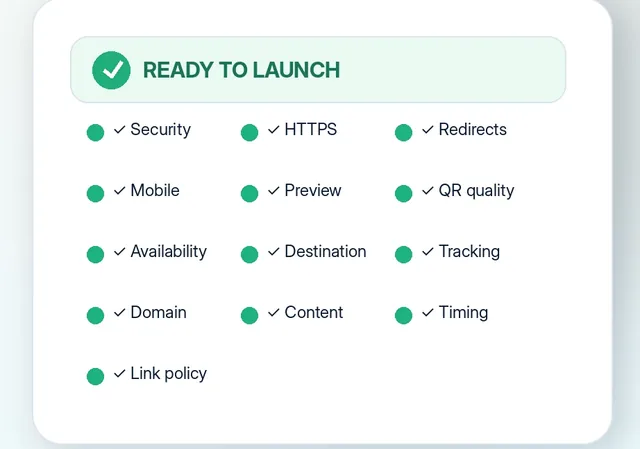
Test every file link before you send it:
- Open the link in a private or incognito window, signed out of every account.
- Open it on a phone using mobile data.
- Check that people can only view, unless they need to edit.
- Check the file name in the link does not reveal anything private.
- Note where the file lives, so nobody moves or renames it by accident.
When should you put a short link in front of a file?
Cloud drive links are long and tied to one file. A short link in front of them helps in three situations.
When you print the link. A flyer, poster or product box needs a short address people can type, or a QR code that scans easily. If the file changes, you change where the short link leads, and the print stays correct. See our guide to making a QR code for a PDF.
When you want to know who opened it. Drive links do not tell you how many people clicked from your email versus your LinkedIn post. A short link counts clicks by channel, and with UTM tags you can see the visits in your analytics.
When you want to swap the file. Next month’s price list replaces this month’s. With a short link, you point it at the new file and every old link, printed or posted, opens the new one.
What do BN Shortener file links add?
BN Shortener can also host the file itself. With file links, on Pro and higher, you upload a PDF, photo, video, document, audio file or archive and get a short download address like b1.lc/d/.... Each file link can have:
- a title,
- a password,
- an expiry date,
- a maximum number of downloads,
- a download log and counter, and a
file.downloadedwebhook for your own systems.
Each file type has a size limit. For safety, HTML, SVG and XML files are always downloaded, never displayed in the browser. Our guide to expiring and password-protected links explains when to use each protection.
A note on names: rename files before you share them. A link that includes “final-v7-DO-NOT-SEND” in its name says more than you meant to, and in iCloud Drive the name is part of the link.
Which option fits which file?
| File and audience | Simplest route |
|---|---|
| A PDF for customers, kept up to date | Drive link with view access, behind a short link or QR code |
| Holiday photos for family | A Google Photos shared album link |
| A video for a client review | Drive or Dropbox link with view access; expiry if your plan has it |
| A contract draft for one person | Restricted or “Specific people” link, never anyone with the link |
| A download you want to count or limit | A BN Shortener file link with a download limit and password |
Start free
Start free at b1.lc to put short, trackable links in front of your drive files: the free plan includes 100 new links a month and 5 dynamic QR codes. File links with passwords, expiry and download limits come with Pro at $15 a month ($144 a year). To build a tagged link first, try the free UTM builder.
Sources
- Share files from Google Drive, Google Drive Help, undated. Checked 2026-10-24.
- How to create a view-only link (create and share a link), Dropbox Help Center, undated. Checked 2026-10-24.
- How to force a download or render content, Dropbox Help Center, undated. Checked 2026-10-24.
- Share OneDrive files and folders, Microsoft Support, undated. Checked 2026-10-24.
- Share files and folders in iCloud Drive on iPhone, Apple Support (iPhone User Guide), undated. Checked 2026-10-24.